You have a file in the wrong format, a deadline, and a search box. Within seconds a free converter promises to fix it: drag the file in, wait a moment, download the result. It works, so most people never think about what happened in between.
So, are online file converters safe? For a flyer, a menu, or a public slide deck, usually yes. For a passport scan, a signed contract, a tax return, or a client spreadsheet, the honest answer is that it depends entirely on where the conversion happens and who runs the site, and you often cannot tell from the page alone.
This guide explains how converters work, which risks are real, how to test whether a tool processes your file inside your browser, and a simple rule for deciding what you should never upload. It is based on guidance from the FBI, OWASP, and browser documentation from Mozilla and Google, all linked at the end.
How online file converters actually work
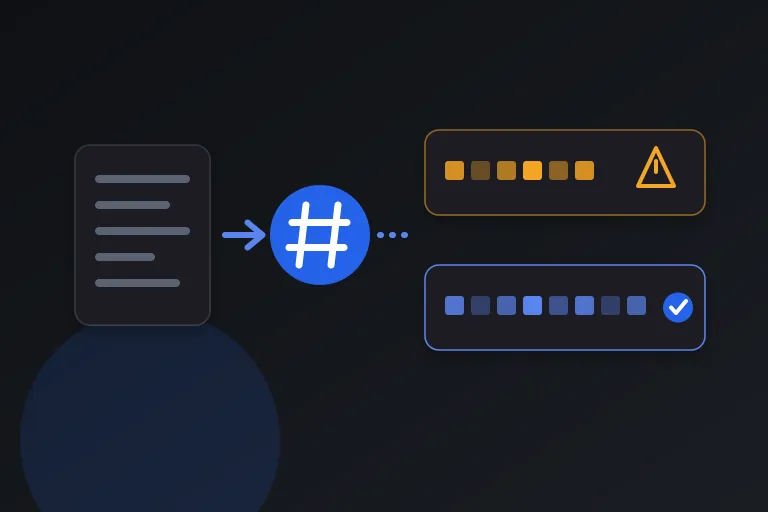
Every online converter falls into one of two designs, and the two look identical on screen. In a server-based converter, your browser uploads the file to a computer owned by the site. That server converts it, keeps it for some period, and offers you a download link. In a browser-based converter, the page loads code (JavaScript or WebAssembly) that reads the file directly from your device and converts it there. The file never needs to travel anywhere.
Browsers support the second design natively. Mozilla's documentation on the File API explains that web content can ask you to select local files and then read their contents, and that a file is only sent to a server when the developer deliberately writes code to upload it. In-browser conversion is therefore not a gimmick; it is a normal capability of modern browsers. It is also a claim any site can make without being truthful, which is why the verification steps later in this guide matter.
- Server-based: your file is copied to the operator's computer, so their storage, logging, retention, and security practices all apply to your document.
- Browser-based: the file is read and converted on your device, so there is no upload to intercept, store, or leak, although the page itself must still be trustworthy.
- Hybrid: some tools convert simple formats locally but send harder jobs, such as scanned documents that need text recognition, to a server, so check what each feature does.
What are the real risks of uploading a file to a converter?
There are two separate risks, and they are easy to confuse. The first is a privacy risk: what happens to your file after it reaches the server. The second is a security risk: what the website does to your device.
On the privacy side, an upload means a copy of your document exists on infrastructure you cannot inspect. OWASP's File Upload Cheat Sheet, written for developers, shows how much a site operator has to get right: storing uploads on a separate host or outside the web root, controlling who can retrieve them, validating file contents, and applying the same safeguards even when files are only processed or emailed rather than kept. As a user you cannot see whether any of that was done. Many sites promise automatic deletion after a set time, but that is rarely something you can verify.
On the security side, the FBI's Denver Field Office warned in 2025 about criminals using free online document converter and downloader tools to spread malware. The warning described sites that deliver the converted file you asked for while also installing malicious software, and that may harvest sensitive information from the files people submit. Incidents like this are why an unknown converter site should be treated as untrusted until you have a reason to trust it.
A third, quieter risk is the data you did not know the file contained. Photos can carry location and device details in their metadata, and documents can carry author names, revision history, or comments. When you upload a file you hand over all of it, not just the part you can see.
Which files are fine to upload, and which are not?
A practical way to decide is to ask what would happen if a stranger read the file. If the answer is nothing, a reputable converter is a reasonable convenience. If the answer involves identity theft, legal exposure, or an unhappy client, keep the file on your own device.
Workplace rules matter as much as personal judgment. Many employers and clients prohibit sending documents to third-party services however reputable the service is, and a convenient converter does not change that obligation.
- Usually fine: public flyers, menus, marketing images, published slide decks, and drafts with nothing personal or confidential in them.
- Think twice: internal work documents, unpublished writing, and photos that show people, homes, or locations.
- Do not upload: passports, ID cards, bank or tax documents, medical records, signed contracts, files containing passwords or account numbers, and anything covered by a client or employer confidentiality rule.
How to check whether a converter really works in your browser
You do not have to take a privacy claim on faith. Three quick checks tell you a lot, and none of them need technical skill. Run them with a harmless test file first, never with the sensitive file you actually want to convert.
The Network panel in Chrome's developer tools is the most direct check. Google's documentation describes it as a log in which each row represents a resource, with columns for status, type, initiator, and size. That is exactly what you need to compare request sizes against the size of your file.
Some tools download extra code the first time you use a feature, so load the feature once before you test offline. If a tool behaves differently in each check, treat the stricter result as the truth.
- Read the wording. A specific claim such as files are processed on your device and never uploaded is meaningful. Vague claims such as secure or we care about privacy are not. If a site says files are deleted after a period, that means they were uploaded.
- Watch the network. Open developer tools (in Chrome, press Ctrl+Shift+J on Windows or Linux, or Command+Option+J on Mac, then choose the Network tab), clear the list, and convert a test file. A server-based tool shows a large request roughly the size of your file leaving your browser. A browser-based tool shows only small requests, such as analytics.
- Try it offline. Load the converter page fully, switch off your internet connection, then convert a test file. If it still works, the processing is happening on your device. If it fails, the file was being sent somewhere.
Red flags that a converter site is risky
Whatever the processing model, some signals suggest a site is more interested in you than in your file. If you notice more than one of the following, close the tab. A conversion is never worth a malware infection.
- It asks you to install a program, browser extension, or download manager to finish a simple conversion.
- The page is crowded with large, convincing Download buttons that are actually advertisements.
- It demands an account, an email address, or payment before converting a basic file.
- The downloaded file has an unexpected extension, such as an .exe or .zip when you asked for a PDF.
- The site has no named owner, no contact details, and no privacy policy, or its address is a near-copy of a well-known brand.
- It asks for permission to show notifications or requests access to more than it needs.
Safer ways to convert files
The safest converter is often one you already have. Browsers can print any page to PDF, office suites can export to PDF and other formats, and operating systems include built-in tools for common image conversions. For sensitive work, a reputable desktop application keeps everything offline.
For everyday tasks that do not justify installing software, browser-based tools are a strong middle ground because the work happens on your device. This is the approach Toolardio takes: tools are designed to run in your browser whenever possible, so your inputs stay with you. Whichever service you choose, apply the verification steps above rather than trusting any site, including ours, on its word alone.
What to do if you already used a risky converter
Do not open the downloaded file straight away. Scan it with up-to-date security software and delete anything you did not ask for, especially installers. If the site prompted you to install something, uninstall it and run a full scan.
If you uploaded something sensitive, treat it as exposed. Change the passwords for any accounts mentioned in it, watch the relevant accounts for unusual activity, and consider fraud alerts or credit monitoring if identity documents were involved. The FBI asks anyone who has encountered or fallen victim to this kind of scam to report it to the Internet Crime Complaint Center at ic3.gov.
Common questions about converter safety
Is HTTPS enough to make a converter safe? No. HTTPS encrypts the connection between your browser and the site, which stops people on the network from reading your file in transit. It says nothing about what the site does with the file once it arrives, or whether the site is honest.
Do converters really delete uploaded files? Many say they do, and some probably do. But deletion happens on their side, on a schedule you cannot see, so for sensitive files the safer approach is to avoid the question entirely by not uploading them.
Are browser-based converters completely risk-free? They remove the upload risk, which is the largest privacy concern, but not every risk. A malicious page can still mislead you or offer a harmful download, so the red flags and the scan-before-opening habit still apply.
Practical checklist
- Decide how sensitive the file is before you search for a converter.
- Keep IDs, contracts, and financial, tax, and medical files off upload-based converters entirely.
- Prefer tools that clearly state files are processed in your browser, and test that claim with a throwaway file.
- Check the Network tab or try the tool offline to confirm nothing is uploaded.
- Close any site that demands an installer, an extension, or an unnecessary account.
- Scan downloaded files with updated security software before opening them.
- Remove metadata from photos and documents before sharing them, even when conversion is local.
Research and references
This guide was prepared from the authoritative references below.