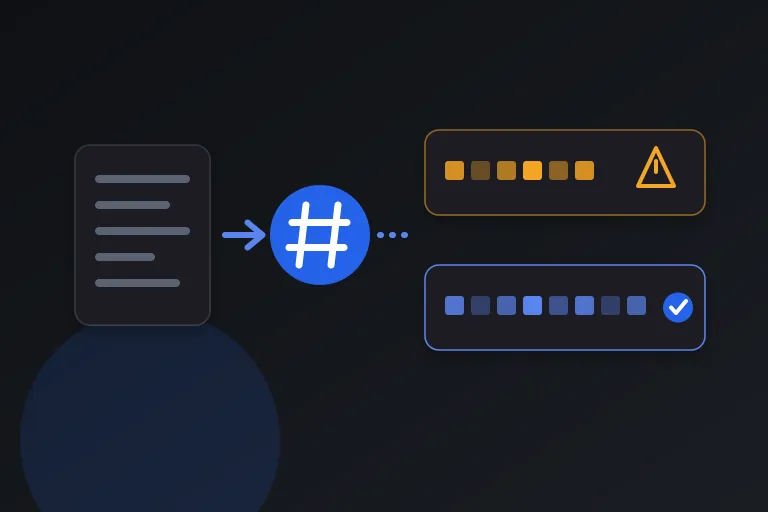
A photo is more than the picture. Behind the pixels, most images taken with a phone or camera carry a block of hidden details: the device that took it, the time, the camera settings, and often the exact place. Share the file without thinking about it, and you may share all of that too.
This guide explains what EXIF data is, what it can contain, why it matters for privacy, how to check what your photos reveal, and how to remove it. It draws on the Library of Congress, Wikipedia's article on Exif, and Apple's support documentation, linked at the end.
The short answer: EXIF is metadata stored inside image files, and it can include a precise location and timestamp. Before you share a photo that matters, turn off location sharing or remove the metadata, and check the result.
What is EXIF data?
Exif stands for Exchangeable image file format. The Library of Congress describes it as a pair of file types mainly intended for recording technical details associated with digital photography. Wikipedia calls it a standard that specifies formats for images, sound, and ancillary tags used by digital cameras, including smartphones, scanners, and other systems.
The Library of Congress notes that the standard has been managed jointly by two Japanese industry associations, JEITA and CIPA, since 2009. Uncompressed Exif files use the TIFF format with an extended set of tags, while compressed Exif files are baseline JPEG with the metadata stored in application marker segments. In practice, that means the data travels inside the image file itself, so it follows the picture wherever the file goes.
What does EXIF data contain?
According to Wikipedia, Exif records several kinds of information. Which of them a given photo contains depends on the device and its settings.
- Camera settings, such as aperture, shutter speed, focal length, ISO speed, and metering mode.
- Date and time information about when the photo was taken.
- Geolocation data, meaning GPS coordinates and related location details.
- Image metrics, such as pixel dimensions and resolution.
- A thumbnail, a small preview image stored inside the file.
- Description and copyright information.
Why EXIF data is a privacy risk
The concern is the combination of location, time, and device. Wikipedia notes that photos taken with GPS-enabled devices can reveal the exact location and time the photo was taken, and the unique ID number of the device, all by default and often without the user's knowledge.
Apple explains why phones do this: the coordinates are embedded into each photo and video so you can later search for them in the Photos app by location. That is a genuine convenience, but it means a casual snapshot taken at home can carry your home's coordinates, and a series of photos can reveal where you live, work, or travel.
Real-world examples of metadata leaks
Wikipedia documents two well-known cases. In 2012, a photo of John McAfee published by Vice magazine included GPS coordinates in its metadata that pointed to his location in Guatemala. In 2003, cropped images of the television host Cat Schwartz contained hidden Exif thumbnails that revealed the uncropped originals.
The second case is a useful warning. Cropping or editing a picture does not always update the embedded thumbnail, so the original content can survive in a place you do not think to look.
Do social networks remove EXIF data?
Some do and some do not, and it is unwise to assume. Wikipedia notes that some platforms strip Exif information automatically while others preserve it. GitHub is its example of a service that preserves location data by default.
Even where a platform strips the data from the public copy, you are still sending the original, with its metadata, to the platform's servers. If you care about the data, remove it yourself before uploading rather than trusting each service's behavior.
How to see what a photo contains
Checking a file takes a few seconds. On Windows, right-click the image, choose Properties, and open the Details tab, where camera, date, and GPS fields appear if they exist. On a Mac, open the image in Preview and use the Inspector from the Tools menu to see the EXIF and GPS tabs.
Use an EXIF viewer that runs on your own computer if you want a complete listing. Avoid uploading private photos to a website just to inspect them, because that sends the file, with all its metadata, to someone else's server.
How to stop location data at the source
The cleanest fix is to avoid recording location in the first place. Apple's documentation describes how to stop location metadata from being collected on an iPhone: go to Settings, Privacy & Security, Location Services, choose Camera, and select Never. Photos taken afterwards will not carry coordinates.
Other phones have a similar setting in the camera app, usually described as location tags or geotagging. The trade-off is that you lose the ability to search or sort photos by place, so some people keep it on for personal use and strip it before sharing.
How to remove location when sharing a photo
If you want to keep location in your library but not in what you send, most phones offer a per-share option. These steps come from Apple's documentation for iPhone.
- Open the Camera or Photos app and select the photos you want to share.
- Tap the Share button, then tap Options.
- Turn off Location. The screen then shows Location Not Included.
- Finish sharing as usual, and the recipient receives the photo without coordinates.
How to remove location from photos you already have
For existing photos, Apple's steps on iPhone and iPad are to open Photos, select a photo, tap the More button, choose Adjust Info, then Adjust Location, and select No Location. On a Mac, select the images in Photos and use the Image menu, then Location, and choose Hide Location.
On Windows, right-click the file, open Properties, go to the Details tab, and choose Remove Properties and Personal Information, which lets you strip selected or all removable details from a copy of the file. Note that removing location is not the same as removing everything, because date, time, and device information can remain unless you clear them too.
Other ways to strip metadata and how to verify
Many image editors and local tools offer a remove metadata or strip option when you export. Taking a screenshot also creates a new image without the original's camera data, although it lowers quality and adds its own details. Choose tools that work on your device so the file never leaves it.
Always verify. After removing metadata, open the new file's properties or an EXIF viewer and confirm that GPS, device, and date fields are gone. Keep the original for yourself, and share only the cleaned copy. Beyond EXIF, other metadata standards such as XMP and IPTC can also carry names, captions, and keywords, so a thorough tool clears those too.
Everyday situations where EXIF data matters
Metadata leaks are rarely dramatic. They usually happen in ordinary moments, when a photo is shared quickly and the file is treated as just a picture. These are the situations where it is worth pausing.
The pattern behind all of them is the same: a single photo's coordinates are a point on a map, but a collection of photos with timestamps is a record of where someone is and when. That is why it is safer to strip metadata by habit than to judge each case.
- Selling an item online from your home. A photo of a bicycle in your hallway can carry your home's coordinates, and so can every other listing you post.
- Posting travel photos in real time. Timestamps and locations tell followers, and anyone else, exactly where you are right now and when you will be away from home.
- Sharing photos of children, schools, or sports clubs. The files can reveal the places a child regularly spends time.
- Photographing your car, your front door, or your workplace. The image and its coordinates together identify a precise location.
- Sending photos to strangers, forums, or marketplaces where you cannot control who downloads the original file.
- Publishing images on a website or blog, where the original file, metadata included, may be downloaded by anyone.
When EXIF data is useful
Metadata is not the enemy. Photographers use camera settings to learn and compare shots, libraries use dates and locations to organize collections, and copyright fields help credit authors. The goal is control, not blanket removal.
Keep full metadata on your private originals, remove or reduce it on copies that go to the public, and be especially careful with photos of your home, children, vehicles, and anything where a location would be sensitive.
Practical checklist
- Assume photos from a phone carry location and time unless you have checked.
- Turn off camera location tagging, or remove location when sharing.
- Check a file's details before posting an image that matters.
- Do not rely on a social network to strip metadata for you.
- Remember that thumbnails can retain uncropped content.
- Use tools that run on your own device to view and remove metadata.
- Verify that the cleaned copy has no GPS, device, or date fields, and keep the original private.
Research and references
This guide was prepared from the authoritative references below.