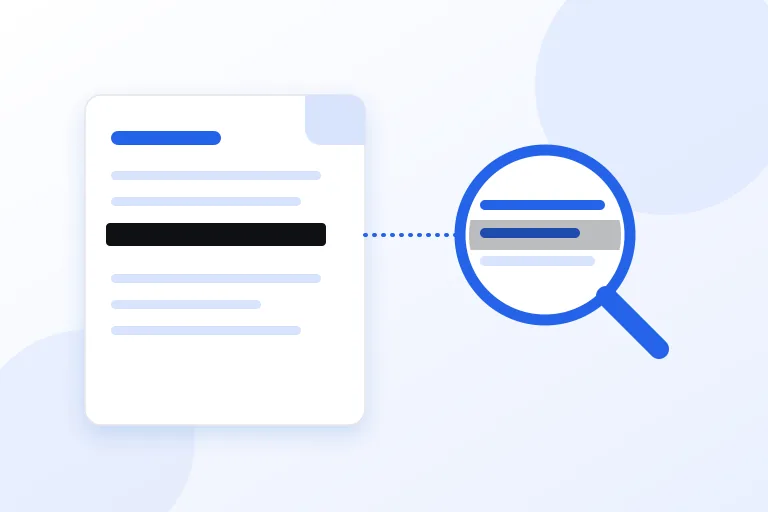
The most common way to hide something in a PDF is to draw a black rectangle over it. It looks right on the screen and on paper. It is also, in many cases, a failure: the words under the rectangle are still in the file, and anyone can select them, copy them, or search for them. Redaction that only covers text is cover, not removal, and documents have been published, and then read, because of the difference.
This guide explains why a black box does not work, what real redaction removes, where else the same text can hide inside a PDF, and how to test your own result. It draws on the US National Security Agency's guide to redaction of PDF files, on the research by Adhatarao and Lauradoux on hidden data in PDF files, on Rule 5.2 of the US Federal Rules of Civil Procedure, and on the Library of Congress description of the PDF format, all linked at the end. It also uses the tests that were run for the PDF redactor on this site.
The short answer: use a method that removes the content and not one that paints over it, remove everything else that can carry the same words, and then try to copy the text out of the finished file.
Why a black box does not hide the text
A PDF keeps the words on a page and the way the page is drawn as separate things. The words are stored in the page content, with their positions, and a viewer draws them. A rectangle that you add on top, whether it is a shape, a highlight, or a comment, only adds one more thing to draw. It does not touch the words below. A copy command, a text search, or a script that extracts the text of the page reads the page content, not the picture on the screen, so it finds the words that the rectangle covers.
The US National Security Agency describes redaction as the process of selectively removing visible and non-visible classified or sensitive information from a document, and its guide to redaction in Adobe Acrobat is built around a step that removes the content itself, followed by a step that removes metadata, hidden content, and scripts. The word that matters is removing. A method that does not remove the content is not redaction, however good it looks.
How common the failure is
Researchers at Inria in France looked at this on a large scale. They collected 39,664 PDF files that 75 security agencies in 47 countries had published, and they found that in 65 percent of the files that had been sanitized, sensitive information was still there. These were organisations that care about the problem, and the lesson of the study is that removing data at the surface is not enough. Everything that could carry it has to go.
The mistakes behind such failures are usually ordinary ones. A person marks the text with a highlight and sets the colour to black. A person draws a box with a shape tool. A person changes the colour of the text to white, or puts a picture on top. Each of these changes how the page looks and leaves the text where it was.
What real redaction does
Real redaction changes the content of the page. There are two ways to do it, and a good tool does one of them, never neither.
The first is to remove the text objects that sit under the box from the page content and draw the box in their place. The other text on the page stays as text and can still be selected. This keeps the page small and searchable, and it depends on the tool finding every piece of text under the area, including text in unusual fonts and text split into many pieces.
The second is to turn the page into a picture. The page is drawn, the black boxes are painted on the picture, and the new file holds the picture in place of the page. There is no text on the page at all, so there is nothing under the box to find. This is the method that the PDF redactor on this site uses, with the PDF.js library from Mozilla drawing the pages in your browser. Its cost is that the rest of the page is a picture too, so it cannot be selected or searched unless you run text recognition on it afterward.
What else can hold the same words
The page content is not the only place a name can be. A careful redaction deals with all of these, and a quick one misses some.
- Comments and annotations on other pages, which may quote the text.
- Bookmarks, which carry the title of a section and often a name.
- Form fields, which keep their value apart from the page.
- Tags for screen readers, which hold a copy of each page's text.
- Document properties and the XMP block, which can name the author, the title, or the subject.
- Attached files, which may be a whole copy of the document.
- Earlier versions of the file. A PDF that was saved by adding to the end can still contain the pages as they were before the change.
- The same words on other pages that have no box at all.
Decide what to redact before you start
Work out what has to go, then search the whole document for it, because a name that you covered on page 2 may be written again on page 9. A list of the words, numbers, and kinds of data to remove is the best protection against the one that you missed.
Rules often say exactly what must be removed. Rule 5.2 of the US Federal Rules of Civil Procedure says that a filing with a Social Security number, a taxpayer identification number, a birth date, the name of a minor, or a financial account number may include only the last four digits of the numbers, the year of the birth date, and the minor's initials. Other courts, agencies, and companies have their own lists. Find the list that applies and use it as a checklist.
Be exact about the data. A card number can be checked, because it has a check digit, and a tool that knows the check can find numbers on a page that look like card numbers and are not random digits. A tool that finds names has to rely on the words that you give it. In both cases, look at every box on the page before you redact, because it is easier to remove a wrong box than to find out later that a right one was missing.
Ways to redact, and what each one costs
A PDF editor with a redaction feature is the usual choice. In these programs you mark the text, apply the redaction, and remove the hidden information as a separate step. The NSA guide for Adobe Acrobat covers the sequence: remove the content, then remove the metadata, hidden content, and scripts. The risk is stopping after the first step, and the cost is that the software is usually not free.
A tool that runs in the browser, such as the one on this site, needs no installation, and the file stays on your device. It turns each redacted page into a picture, so the text of those pages can no longer be copied, and it checks the result by opening the new file a second time and counting the text that it finds on the pages that you redacted. It also searches the rest of the file for each word that you redacted.
Printing to a new PDF, or converting each page to an image and rebuilding the file, achieves the same effect with common tools. It works, and it loses the text of the whole document, and it may lose the quality of the pages. Whatever the method, keep the original in a safe place. Redaction is permanent, and the original is the only copy that has the words in it.
What does not work
Some tricks are used again and again, and all of them leave the text in the file. It helps to know them, so that you can spot them in your own documents and in documents that you receive.
- A black rectangle, highlight, or comment drawn over the text.
- Text set to a black or white colour that matches the background.
- A picture placed over the text.
- A black highlight in a word processor before the file is saved as a PDF. The words are still text.
- Saving the file again with a new name, which does not remove anything.
- Covering text in a scan with a box, when the scan has an invisible text layer from character recognition under the picture.
How to check the result
Test the file as an outsider would. Open the redacted PDF, select all with Ctrl+A, copy, and paste into a text editor. If a covered word appears, the redaction failed. Use the search box of the viewer to look for each word that you meant to remove. A command-line program that extracts text, such as pdftotext, gives the same answer without the viewer.
Then look beyond the pages. Open the document properties and check the author, title, and subject. Look at the bookmarks, the comments, the form fields, and the list of attachments. Open the file in a second viewer, since two programs may show different things. The redactor on this site does this for you after it finishes: it opens the new file from its own bytes, counts the text on every redacted page, and searches the properties, bookmarks, comments, form fields, attached files, and any page content stored as plain characters for the words that you redacted.
In the tests for that tool, a sample file with the same name, email address, phone number, Social Security number, card number, IBAN, and IP address in four fonts was redacted in Chrome. The result was drawn and compared with the original pixel by pixel, and none of the 65 words that were blacked out showed, while the 77 words next to them were left alone. The same test found the form field, the bookmark, the comment, the attached file, and the properties that named the person all removed. A test like this on a sample of your own is the best way to trust any tool.
Scanned documents and pictures
A scanned page is already a picture, so a box on it can be burned into the picture and be permanent. The trap is the text layer. Many scanned PDFs have been run through character recognition, which adds an invisible layer of text under the picture so the file can be searched. A box over the picture does not remove that layer, and the text under it is as readable as in any other PDF. Redact these files the same way as any other, with a tool that removes the content, and check by searching for the words.
Pictures can hold information too. A photograph can carry its location in hidden data, and a screenshot may include a name that you did not mean to show. Look at the pictures in the document as well as the text.
Before you share the file
Give the redacted file a name that shows what it is, such as the original name with the word redacted added, so that nobody sends the original by mistake. Keep the original and the redacted copy in different folders. Check the size, because a redacted file made of page pictures is usually larger, and check that the number of pages is the same.
If the document is going to a court, an agency, or a company, ask what format they expect. Some want the text to remain searchable, and then the right method is one that removes the text under the boxes and keeps the rest as text, or a picture-based file with a fresh text layer made from the redacted picture, which can only contain what the picture shows.
Practical checklist
- Decide what has to be removed, and search the whole document for each item.
- Use a method that removes the content, not one that paints over it.
- Remove metadata, comments, bookmarks, form fields, attachments, and hidden content as well.
- Look at every box before you apply the redaction.
- Select all, copy, and paste into a text editor to see whether any covered text comes out.
- Search the finished file for each redacted word, in two different viewers.
- Check the document properties and the pictures in the file.
- Keep the original, and name the redacted copy so that it cannot be mistaken for it.
Research and references
This guide was prepared from the authoritative references below.
- NSA: Redaction of PDF Files Using Adobe Acrobat Professional X (Information Assurance Directorate)
- Adhatarao and Lauradoux: Exploitation and Sanitization of Hidden Data in PDF Files (ACM IH&MMSec 2021)
- Federal Rules of Civil Procedure, Rule 5.2: Privacy Protection for Filings Made with the Court
- Library of Congress: PDF, Version 1.7 (ISO 32000-1:2008)
- PDF.js: the Mozilla library that draws PDF pages in the browser