Some PDFs ask for a password before they open. Others open at once, and then refuse to let you print, copy a paragraph, or fill in a field. Both are called password protected, and the difference confuses almost everyone who meets it. The PDF format has two passwords, called the user password and the owner password, and they do very different jobs. One of them is real security. The other is a polite request that the software is asked to respect.
This guide explains what each password does, how the restrictions work, why they are much weaker than they look, and how the strength of the encryption depends on the method that was used. It draws on the qpdf documentation of PDF encryption, which is the most detailed plain-language description of the standard security handler, and on the Library of Congress descriptions of PDF 1.7 and PDF 2.0, both linked at the end. It also draws on the tests that were run for the PDF unlocker on this site, which handled 15 encrypted sample files made with qpdf.
The short answer: the user password decides who can open the file, the owner password decides who can change the rules, and the rules themselves are only as strong as the program that reads the file.
Two passwords for one file
The PDF standard describes two passwords for one document. The user password, also called the document open password, is the one a reader must supply to open the file at all. The owner password, also called the permissions password, is the one that gives full access, including the right to change the restrictions on the file. A file can have either, both, or neither.
The two can be set to the same text, to different texts, or one can be left empty. The combination decides what you see. A file with a user password asks for it every time. A file with only an owner password has an empty user password, so it opens without asking, and then a viewer that follows the rules switches off whatever the owner turned off. This is why you can often read a PDF and still not print it.
What the user password does
The user password protects the contents. When it is set, the text, pictures, and other data in the file are encrypted, and a program needs the password to work out the key that decrypts them. Without the password there is no way to read the pages. If the encryption is strong, there is also no practical way to guess the password except by trying many of them, which is why a long password matters.
This is the kind of protection that you want when a document is confidential. Opening a file with a user password gives you the document as it is, subject to any restrictions that the owner added as well.
What the owner password does
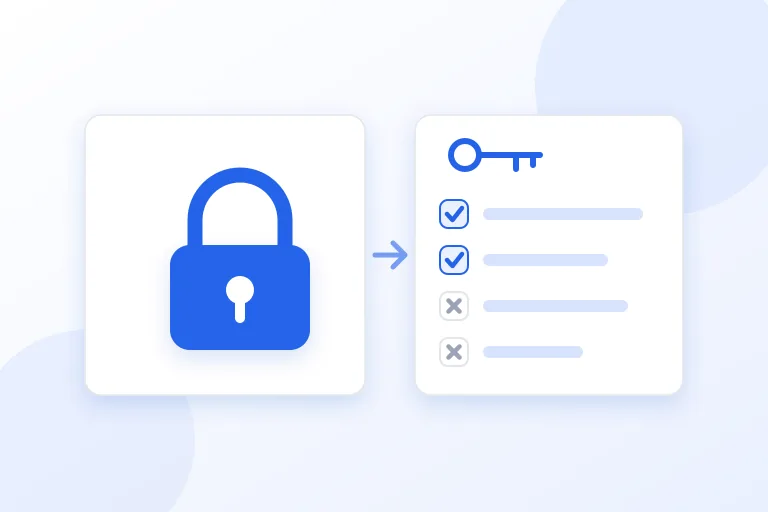
The owner password controls permissions. The standard defines a set of permission bits that say what a reader may do when the file is opened with the user password. The qpdf documentation lists them. They cover printing, with a separate bit for printing in high resolution, changing the document, copying or extracting text and graphics, adding or changing comments and form fields, filling in form fields, and assembling the document by inserting, rotating, or deleting pages. The oldest versions of the encryption define only the first few.
When the owner turns a permission off, a viewer that follows the standard disables that action. That is what you meet when the Print button is grey or copying does nothing. Someone who opens the file with the owner password is not held to the limits.
- Printing, and printing at full resolution as a separate permission.
- Changing the document.
- Copying or extracting text and graphics.
- Adding or changing comments and form fields.
- Filling in existing form fields.
- Assembling the document: inserting, rotating, or deleting pages.
Why the restrictions are weak
The qpdf documentation is direct about this. It explains that either password can be used to retrieve the encryption key, and that a conforming reader is supposed to obey the restrictions if the file is opened with the user password but not if it is opened with the owner password. It then says that there is fundamentally no way to prevent an application from disregarding the security restrictions on a file, because they are solely enforced by the software.
The reason is the way the file is built. A PDF whose user password is empty has to open for everyone, so the key that decrypts it can be worked out by anyone, by using the empty password. A program that has the key can read everything in the file. Whether it then refuses to print is a decision made by the program, and a program that does not make that decision can be written or changed by anyone. The qpdf documentation puts it plainly: restrictions on a file with no open password only restrict people who do not know how to get around them.
This is why the owner password is best thought of as a notice and not as a lock. It can stop a casual user, and it can state the author's wishes, and a well-behaved reader will honor it. It cannot stop a determined one, and it cannot stop a screenshot, a photograph of the screen, or text recognition on a printout. The same documentation notes that if a user password is set and the owner password is left blank in the newest encryption, the file is opened as owner with no password, which makes the restrictions useless.
How strong the encryption is
Whether the user password protects anything depends on the method behind it, and PDF files use several. The qpdf documentation says that 40-bit encryption always uses RC4, that 128-bit encryption can use RC4, which is the default for compatibility, or AES starting with PDF 1.6, and that 256-bit encryption always uses AES.
The strengths are very different. The documentation says that a 40-bit key can easily be found by brute force whatever the password is, that RC4 is also known to be insecure, and that the only secure way to encrypt a PDF with the standard security handler, as of the last review of that chapter in 2022, is AES. PDF 2.0, which the Library of Congress describes as ISO 32000-2, deprecates the weak schemes and uses AES with a 256-bit key.
The practical meaning is that an old file protected with a 40-bit key was never meant to hold against a determined effort, and that a password on a new file only protects it well if the file was saved with AES-256 and the password is long. A good password in a weak scheme is still in a weak scheme.
- 40-bit RC4: old, and easy to break whatever the password.
- 128-bit RC4: better, but RC4 itself is known to be insecure.
- 128-bit AES: secure, introduced in PDF 1.6.
- 256-bit AES: the only method that PDF 2.0 encourages.
How to tell which kind of lock you have
The first test is simple. If the file asks for a password before it shows anything, a user password is set, and you need it. If the file opens but some actions are disabled, only an owner password is set, which means the user password is empty.
For more detail, look at the document properties in your viewer. Most viewers have a security tab that lists the permissions that are on and off, and many show the encryption method and the key length as well. The PDF unlocker on this site shows the same information before it does anything. It reads the Encrypt entry that every encrypted PDF carries and turns it into plain words: RC4 or AES, 40, 128, or 256 bits, whether a password is needed, and which actions are not allowed.
What to do when a PDF is restricted and you have the right to change it
Start with the person who made it. If you wrote the document and set the owner password yourself, use that password in your PDF editor, remove the restrictions, and save. If a colleague, a client, or a company made it, ask for an unrestricted copy, which is quicker and avoids any doubt about what you are allowed to do.
If you have the right to change the file and no way to reach the author, a program can write the document again without the restrictions. Because a file with no open password can be read by anyone, the unlocker on this site does exactly that: it reads the file, which it can because the empty password opens it, and saves a copy without the encryption. It runs in your browser, so the file is not uploaded. A file that needs a password to open is a different case, and the page asks for the password and uses it, and does not try to find one.
Restrictions can express real wishes, such as a licence that does not allow copying, a contract that should not be edited, or a form that must not be changed. Removing them does not remove those wishes, and the rules about copyright and agreements still apply. Use this only for documents that you are entitled to change.
If you have forgotten the user password
There is no way around a user password in the format itself. The password is the way to the key, and without it the content cannot be read. This is the point of the protection, and it is also why a forgotten password on a strong file means the document is gone unless someone else has the password or an unprotected copy.
Be careful with services that promise to recover passwords. For a file with 256-bit AES and a long password, no service can succeed in a useful time. For an old file with a 40-bit key, guessing is possible, but it still means a program that tries passwords, and an upload to an unknown service means sending the document to a stranger. If the file matters, the right steps are to look for an unprotected copy, to ask the sender, and to check your password manager and your old emails for the password.
Choosing protection for your own PDFs
If the aim is secrecy, set a user password, make it long, and save with AES-256. Send the password by a different route from the file, such as a phone call or another messaging service, and not in the same email. Do not rely on the owner password for secrecy, because it protects nothing that the user password does not.
If the aim is to discourage editing or copying, an owner password is a reasonable notice, and it costs nothing. Set it to a strong value that you keep, and do not leave it empty. If you need the content to be impossible to edit, send a flattened copy, such as a PDF made of page images, or a document that is signed, and keep the editable original to yourself.
Whatever you choose, test it. Open the protected file in a second program and see what happens when you try to print and copy, and open it in a program that you do not trust to be polite. Learning that the restriction does not hold before you send the file is cheaper than learning it afterward.
Practical checklist
- Use a user password when the document is confidential, and an owner password only as a notice.
- Save new files with AES-256, and avoid 40-bit and RC4 encryption.
- Make the passwords long, and keep the owner password even if you rarely use it.
- Send a password by a different route from the file.
- Do not leave the owner password empty if you want the restrictions to mean anything.
- Check the security tab of your viewer to see what a file really allows.
- Ask the author for an unrestricted copy before you change a file that someone else made.
- Remove restrictions only from documents that you are entitled to change.
Research and references
This guide was prepared from the authoritative references below.